LLM
Voice Agents use LLM (Large Language Models), which are trained to understand the conversational context, and respond to users.
You can currently use OpenAI, Google, Groq, Azure and Paladin LLMs in LLM configuration. There are some models provided by default for you to choose from the drop down.
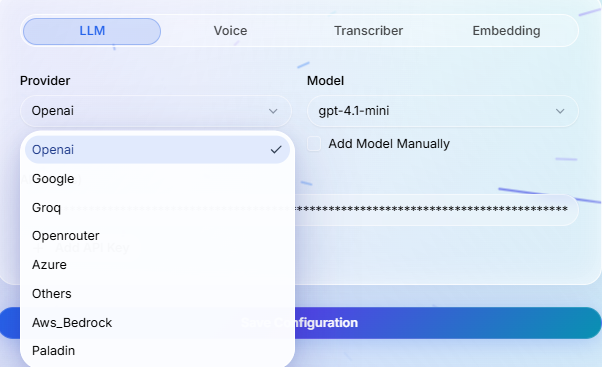
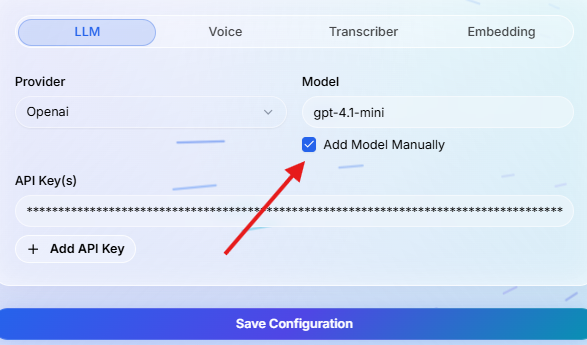
If you don't find a model in the drop down, you can always add a model manually.
What this controls#
The LLM setting controls the model that reasons over the conversation, reads the active node instructions, decides when tools should be used, and generates the next response for the agent.
Setup checklist#
- Choose a configured provider and model from the dropdown when it is available.
- Add a model manually only when the provider supports it and the model is enabled for your account.
- Test the same workflow with realistic caller messages before changing multiple model settings at once.
- Keep node prompts specific. The model performs better when each node has a clear goal and clean transition rules.
Practical guidance#
- Use stronger models for complex qualification, multi-step reasoning, or tool-heavy workflows.
- Use faster or lighter models for simple routing, confirmations, and highly scripted flows.
- After changing the LLM, review transcripts and QA results to make sure tone, latency, and tool decisions still match your use case.